AI presentation maker
Describe your topic or attach a document: AI drafts an outline, writes the slides, adds charts and pictures, and builds an editable PowerPoint and PDF. You can adjust the outline before anything is built.
Editable .pptx and PDF · 3 to 30 slides
Your first presentation is free
Sign up and build your first presentation without paying: one deck, up to 8 slides, stock photos for pictures. It costs no energy.
How to make a presentation with AI
Four steps from topic to file. No templates, no manual layout.
- 1
Describe the topic
Say what the deck is about, who it is for and what matters most. Attach text, a PDF, a Word document or a spreadsheet, and the facts and figures will come from there. Pick the number of slides and the design now, or leave them to the AI.
- 2
Review the outline
The structure comes first: the slides in order and what each one says. Reorder or remove slides, change the design, or ask in words: "drop the history slide". The cost of the build is shown here too.
- 3
Let it build
The AI writes the slides to the outline, draws the charts, finds the pictures and checks the layout. It takes a few minutes. You can close the tab: the finished deck will be waiting in Presentations.
- 4
Polish and download
Fix text right on the slide, switch the design, or say what to change. Download the result as .pptx and PDF.
What working on a deck looks like
Real screens of the product: from the outline to the finished file.
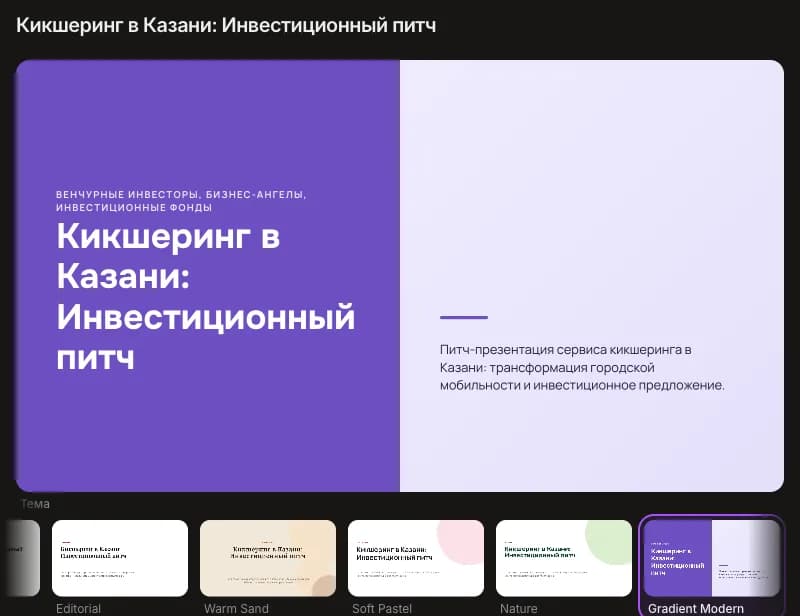
The outline first, slides after
The AI shows the structure of the deck to come: sections, slides and what each one is about. The design and the pictures are chosen here too, and nothing is built until you confirm.
- 17 design themes with a live preview of the cover
- Pictures: stock photos, generated ones or none
- The energy it will cost is shown before the run
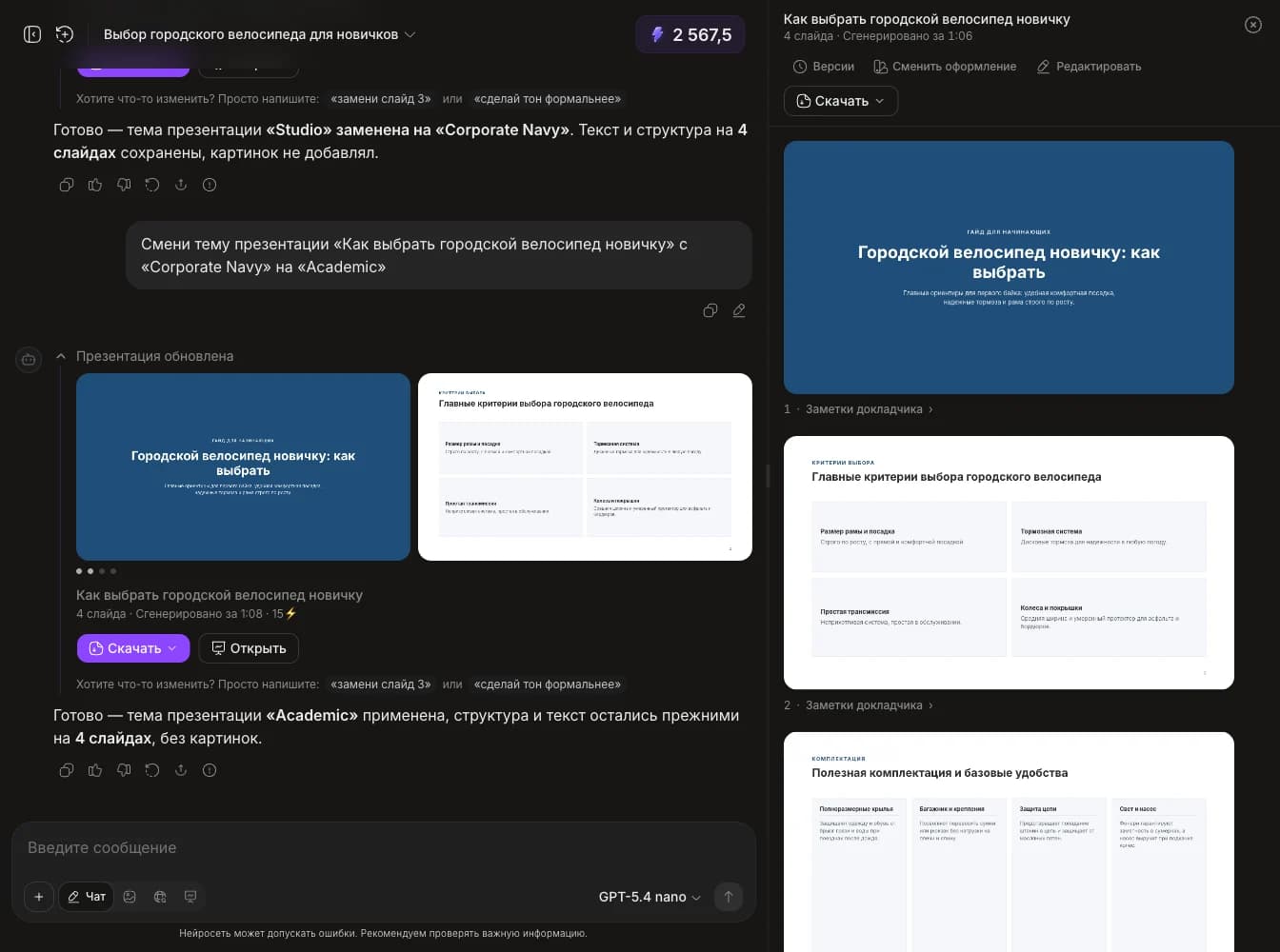
Decks can be made in the chat too
Turn on Presentation mode under the message box and describe the topic. Changes are plain messages there as well: "replace slide three", "make the tone formal". The new version shows up in the panel next to the chat.
- Earlier versions stay and can be reopened
- Slides are visible in the panel without leaving the chat

Slide editor
If it is quicker to fix by hand, open the deck and click the text right on the slide: changes save themselves. For a bigger change, describe it in the box at the bottom – a new version appears and the old one stays.
- All slides in one column, text edited right on the slide
- Speaker notes on every slide
- Export to .pptx and PDF from the header
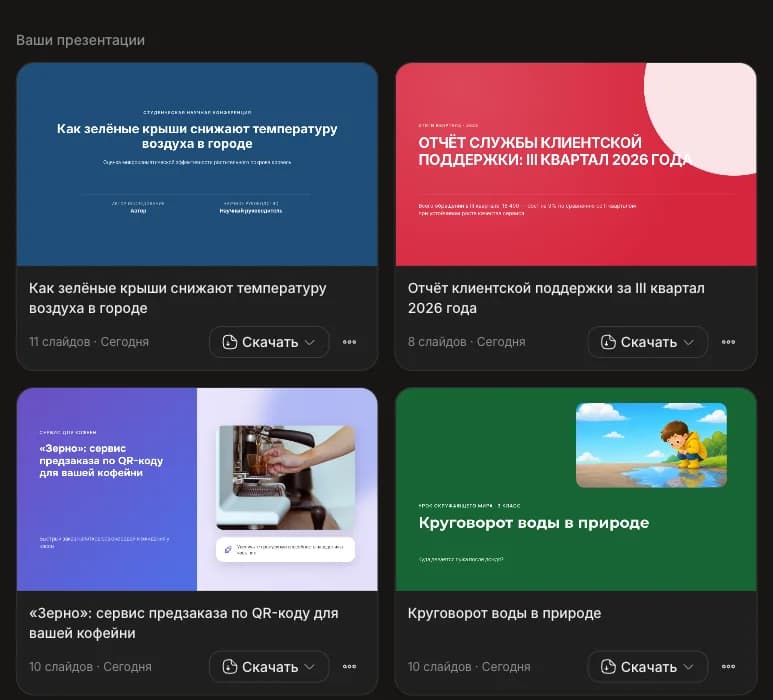
Every deck in one place
Presentations collects everything: decks made on that tab and decks made in chats. Each one has its cover, the number of slides and a download button.
- Found by its cover rather than by the chat's name
- .pptx and PDF straight from the list
What the presentation generator can do
Only what already works in the product.
An outline before the build
Adjust the structure by hand or in words. Energy for the slides is spent only once you confirm the outline.
17 themes, or your own
Ready-made themes from strict corporate to magazine style, plus your own built from a brand color. Switching the design of a finished deck is free and needs no new generation.
Photos and illustrations
Stock photos credited to their authors, illustrations drawn by AI (up to six per deck), or your own images from the attachments.
Charts and tables
Bar, line, area, pie and scatter charts. In the .pptx they are native: the data opens and can be edited in PowerPoint.
From your materials
PDF, Word, Excel, CSV or plain text: the AI pulls out what matters, lays it out across slides and takes the figures from the file.
Edit text on the slide
Click the text and fix a typo or a phrase. The change saves itself and costs no energy.
Edit with one sentence
"Add a summary slide", "make it shorter": the AI changes the right slides and saves a new version, the earlier ones stay.
PowerPoint and PDF
A real .pptx with editable text, tables and charts and the theme fonts embedded, not pictures. A PDF is one click away.
Presentations for study, work and talks
Start with a single sentence, and the AI works out the rest.
Students: talks, term papers, thesis defense
A deck for a talk or a defense follows academic logic: relevance, aim, methods, results, conclusions. Attach the paper, and the figures on the slides will come from it.
"A 12-slide deck for my term paper defense, based on the attached text"
Teachers: a deck for the lesson
The lesson material broken into clear blocks, with examples and review questions. Give the grade and the lesson length, and the deck is sized to fit.
"A 20-minute lesson on photosynthesis for 6th grade"
Business: pitch, report, company overview
Problem, solution, market and team for investors; the period's metrics on charts for management; the product and case studies for clients.
"Q3 sales report based on the attached spreadsheet"
Marketing: launches and proposals
A launch plan with stages and dates, a proposal tailored to one client, a product deck for partners.
"A mobile app launch plan with a timeline for the quarter"
Example slides made by AI
Not one of these slides was touched by hand: it is what the service produced.
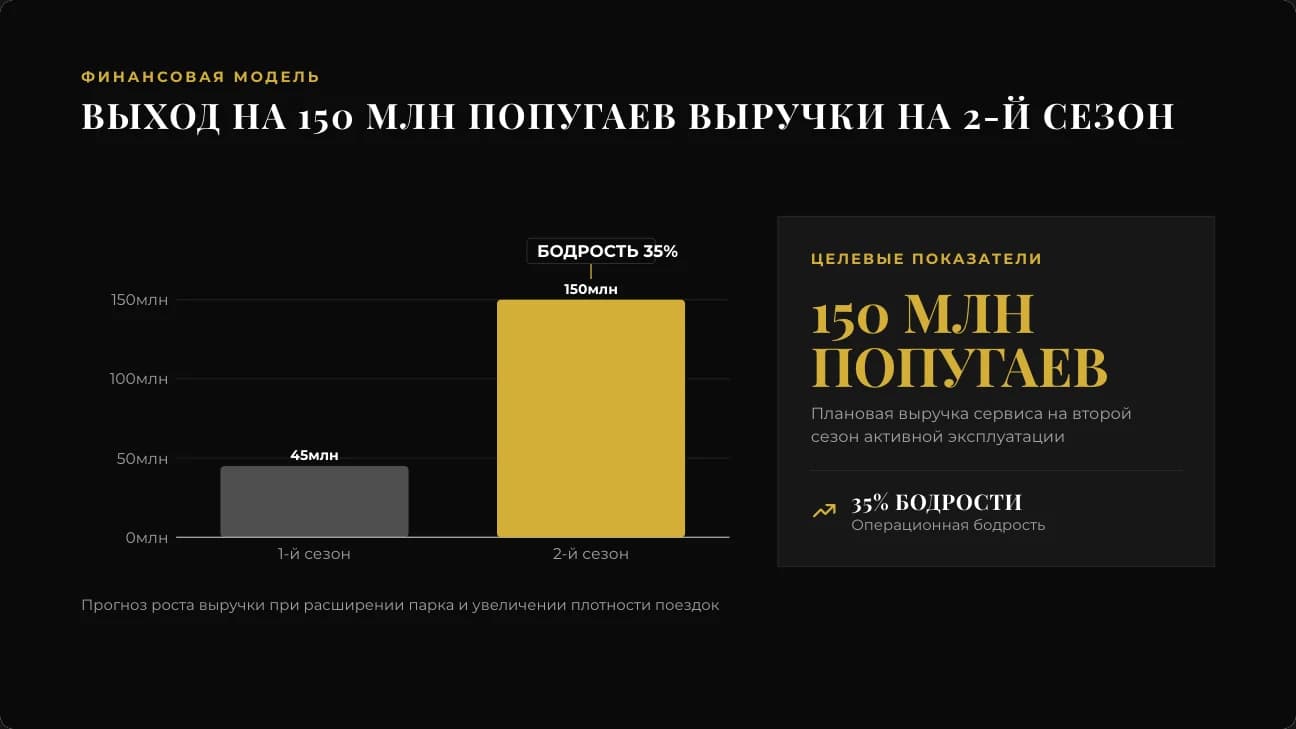
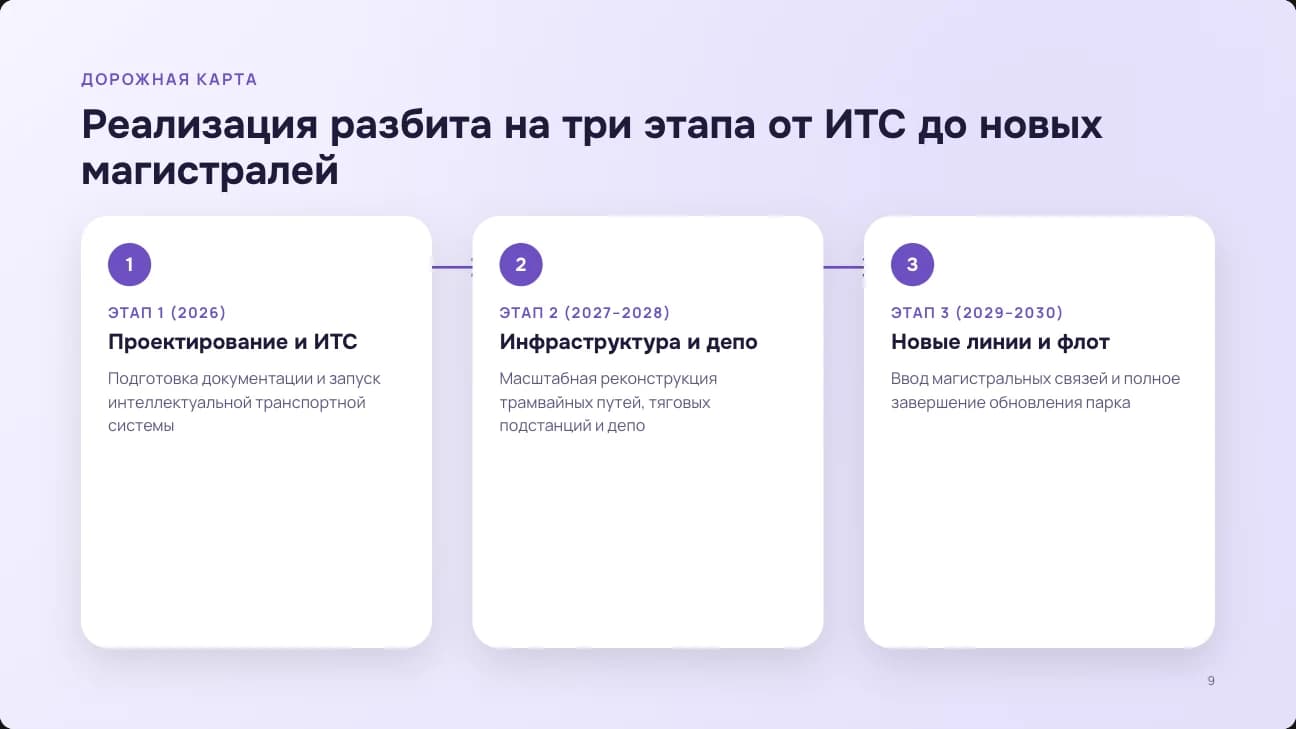
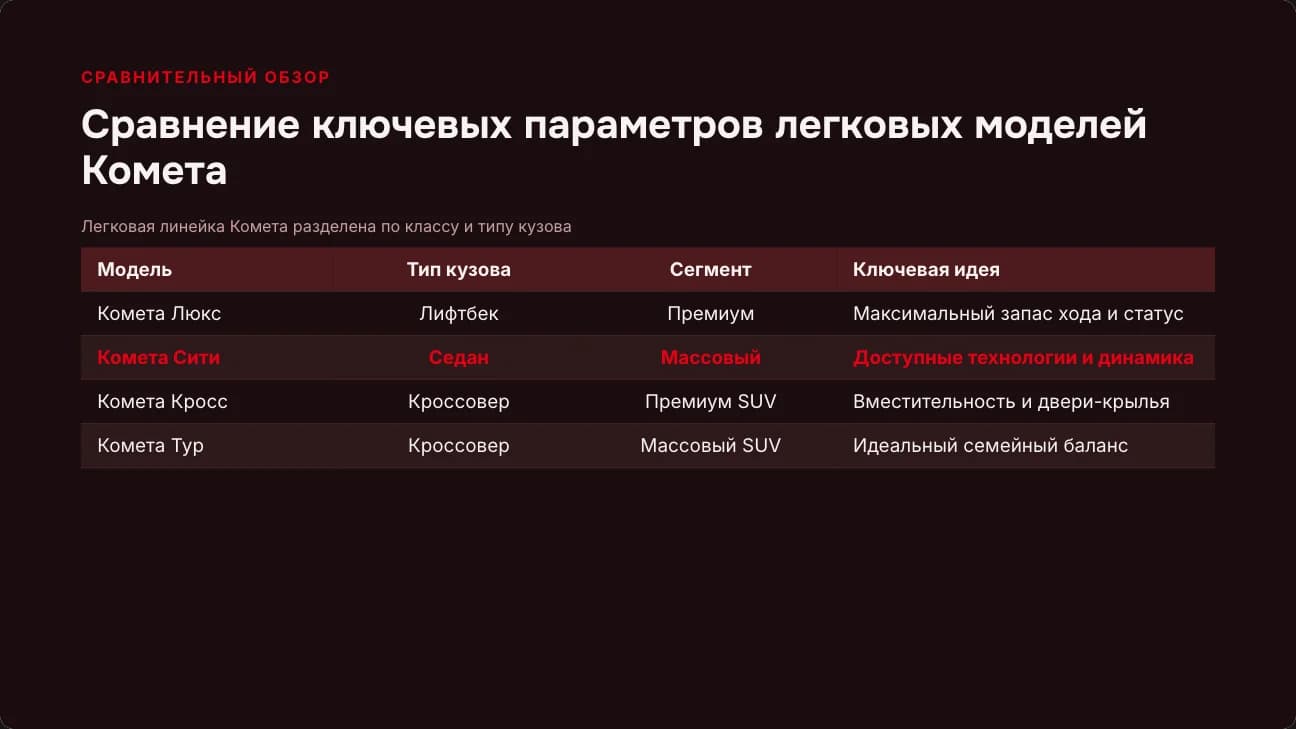
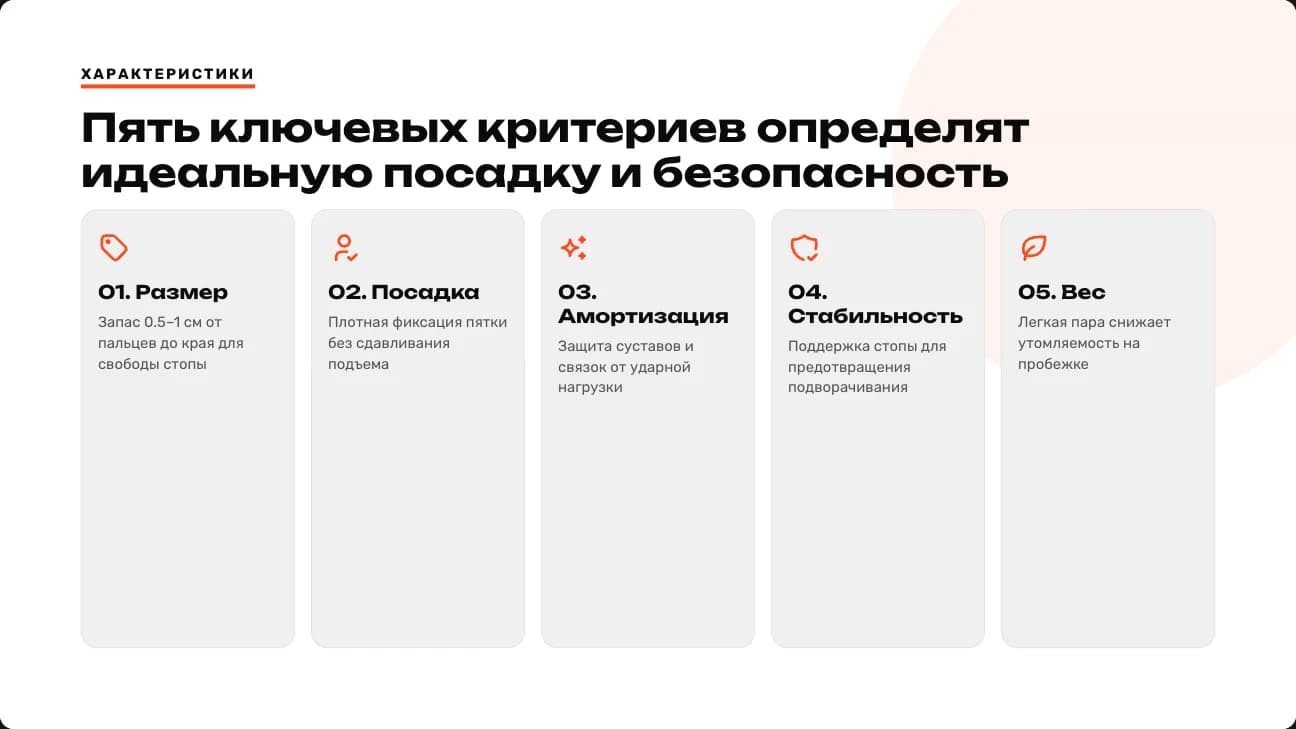
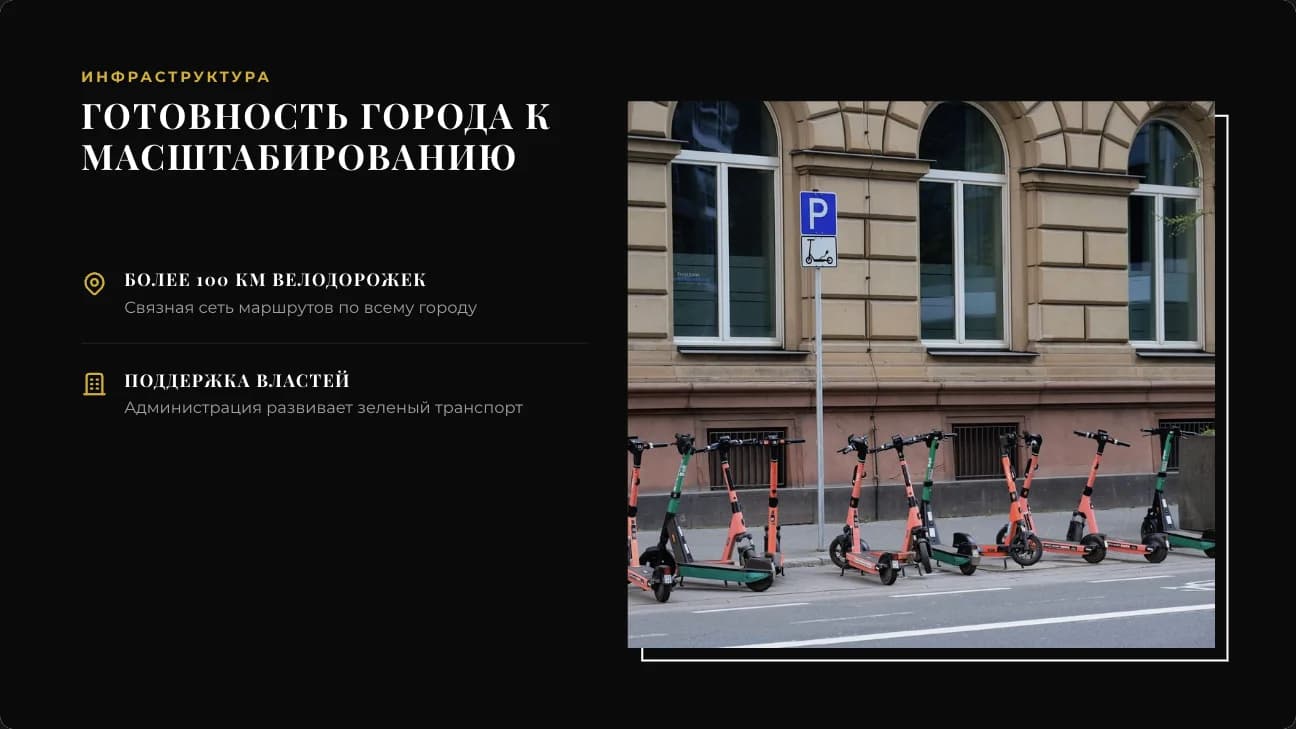
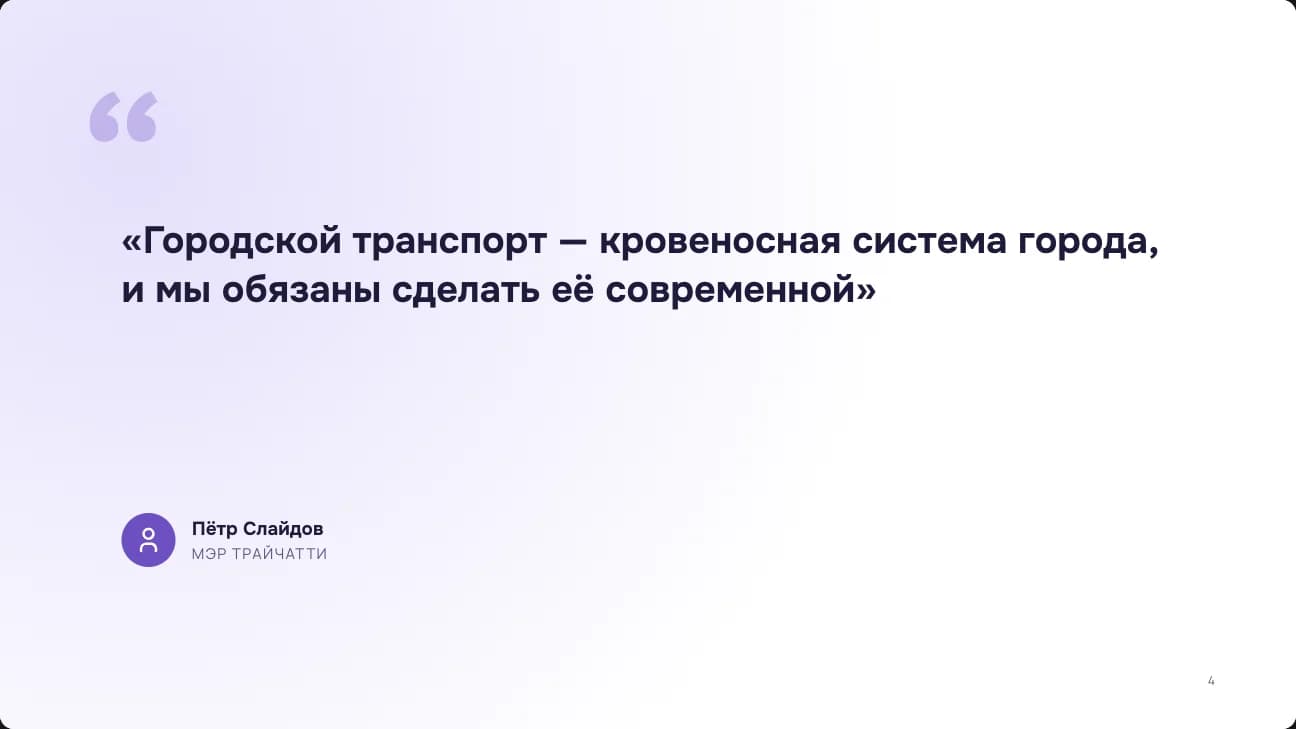
The examples were generated for this page: the companies, people, cities and figures in them are made up.
By hand or with AI
What stays with you and what TryChat takes on.
| Step | By hand in PowerPoint | In TryChat |
|---|---|---|
| Structure | By hand in PowerPointWork it out yourself | In TryChatAn outline before the build, adjusted by hand or in words |
| Slide text | By hand in PowerPointWrite it and trim it for every slide | In TryChatWritten by the AI from the outline and your materials |
| Design | By hand in PowerPointPick a template, align the blocks | In TryChat17 themes, and the service checks the layout itself |
| Charts | By hand in PowerPointCopy the figures over and set up the chart | In TryChatBuilt from the data and kept editable |
| Pictures | By hand in PowerPointSearch, download and insert | In TryChatStock photos, generated pictures or your own |
| Changes | By hand in PowerPointBy hand on every slide | In TryChatRight on the slide, or with one sentence |
The AI does the groundwork, but facts and figures are still worth checking yourself before you present.
How much a presentation costs
No separate subscription: presentations are paid with the same energy as the chat.
Energy comes with TryChat plans. The price of a deck depends on the number of slides and pictures, and the exact amount is shown on the outline before the build starts.
Plans and energy- Your first presentation after signing up is free: one deck, up to 8 slides, stock photos for pictures.
- An outline can be drafted on any plan, including the free one: it uses a little energy.
- Building the slides and the file is available on paid plans. Energy is charged for what was actually used.
- A stock photo costs 1⚡, generated illustrations cost what the chosen model charges.
- Switching the design and editing text on a slide are free.
- If a build stops, the finished slides are kept, and resuming pays only for what is left.
Questions about making presentations
Price, formats and edits in short.
Can I make a presentation for free?
Yes, the first one: after signing up you can build one presentation of up to 8 slides for free, stock photos for pictures. After that an outline can be drafted on any plan, and building the slides takes a paid one. Switching the design and editing text on finished slides cost no energy.
Do I need an account?
Yes. Decks, their versions and files are kept in your account, so you sign in first: with email or with Yandex, VK ID or Telegram.
What languages does it work in?
The service works in Russian and English, and a deck can be in another language too: write the topic in it or name the language in your description.
Can I make a presentation from text or a document?
Yes. Attach a PDF, a Word document, an Excel or CSV spreadsheet, a text file, or paste text into the box. The AI takes the facts and figures from your materials and builds charts from the spreadsheet data.
What format can I download?
.pptx and PDF. The .pptx opens in PowerPoint with editable text, tables and charts and the theme fonts embedded. The PDF is handy when you need a copy for reading or printing.
How many slides can a deck have?
From 3 to 30. Pick the number up front, give the length of your talk, or leave it to the AI, which sizes the deck to the topic.
How long does it take?
A build usually takes a few minutes: more slides and pictures take longer. Progress is shown on screen, and you can close the tab: the build carries on, and the finished deck appears in Presentations.
Can I edit the finished deck?
Yes, in three ways: fix text right on the slide; say what to change and the AI reworks the right slides in a new version; or download the .pptx and finish it in PowerPoint. Earlier versions are kept.
Can I use my own design or template?
Choose one of 17 ready-made themes or create your own from a brand color. In the chat you can attach your own .potx or .pptx template: its colors, fonts and background are used, while the slide layouts are not copied.
Where do the pictures come from?
Your choice: stock photos credited to their authors, illustrations drawn by AI, or your own images from the attachments. A deck can do without pictures too.
Describe the topic, and the AI does the rest
Open Presentations, say what the deck is about and review the outline.